Make 3D text
A TEXT object turns a word into solid letters with depth. You type the word, pick a font installed on your Mac and set the size of the letters and how deep they go. You can change the word at any time until the letters are turned into an editable mesh. The letters can also be cut into another object with a boolean.
Add text and choose a font
Click ADD OBJECT in the toolbar and choose TEXT.
The word Orbit appears in chrome letters at the center of the scene, turned toward the side where the camera starts. It is selected, and the INSPECTOR shows a TEXT section.
In the TEXT section, click the field that reads Orbit, delete the word and type your own.
The letters in the viewport change as you type.
Click EDIT TEXT… at the bottom of the TEXT section.
The EDIT TEXT sheet opens, with the word in the STRING field and a FONT list below it. Each font in the list is written in its own typeface, and the current one, Helvetica for new text, has a checkmark.
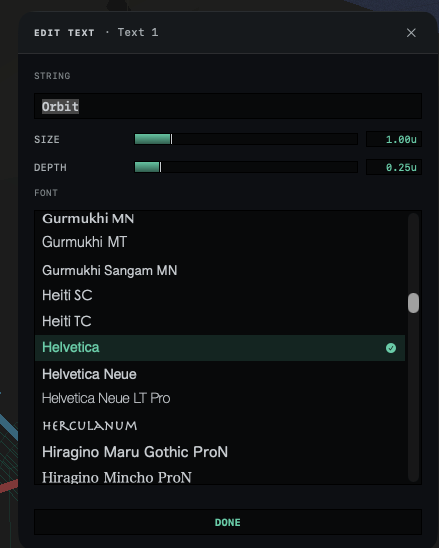
Click a font in the FONT list.
The letters in the viewport take the new typeface.
Drag SIZE to make the letters larger or smaller, and DEPTH to make them thicker or thinner.
New text starts with SIZE at 1.00, the height of the type in meters, and DEPTH at 0.25, the distance from the front of each letter to its back.
Click DONE.
The sheet closes. Pressing Return in the STRING field closes it as well.
The INSPECTOR repeats SIZE and DEPTH under the name of the font. Clicking the font name opens the same sheet as EDIT TEXT….
Change the word later
Select the text object by clicking one of its letters in the viewport or its row in OBJECTS, then edit the word in the TEXT section or in the EDIT TEXT sheet. Everything you type in one visit to the field counts as one undo step, so after you click away from the field, ⌘Z brings back the earlier word in one press. Each font change is its own undo step.
The word sits on a single line. A font that draws its characters as pictures, such as the emoji font, produces no letters, and an empty field leaves the object with nothing to show.
A scene saved on another Mac can use a font this Mac does not have. The font name then shows in orange with (missing) after it, and macOS draws the letters with a font it substitutes. Choose an installed font in the EDIT TEXT sheet to replace it; the missing one stays at the top of the list in italics until you do.
Text has no bevel setting. The sides of each letter run straight back from the front face to the back face.
Reshape the letters by hand
Text is one of the object types that can become an editable mesh. Click MAKE EDITABLE (TAB) in the INSPECTOR, or press Tab, and the letters become points, edges and faces that you can move and cut, as described in Edit a mesh point by point.
Once you change the mesh, the word is fixed. After you leave poly edit mode, the INSPECTOR shows the TEXT section dimmed under MESH IS EDITED · PARAMETRIC LOCKED, and its field and sliders no longer respond. When the text has no deformers, leaving poly edit mode without changing anything brings the word back as editable text. RESET TO PARAMETRIC in that banner brings back the word and its settings and discards every change made to the mesh. More on the conversion is in How Orbit builds objects.
Cut text into another object
Text is a closed solid, so it can take part in a boolean. To carve a word into a block, push the letters partway into the block. Click the letters, hold Shift and click the block, so that the block is selected last, then choose BOOLEAN ▸ SUBTRACT · KEEP followed by the name of the block. UNION joins the letters to an object they touch, and INTERSECT keeps only the part the two share. For the full steps and the conditions a boolean needs, see Combine and cut objects with booleans.
The objects in a boolean can total at most 25,000 triangles, and every letter adds to the count. A long word in a font with many curves can pass the limit, and BOOLEAN is then dimmed with the count in its tooltip. The tooltip suggests lowering SEGMENTS or PROFILE RES, which text does not have; use fewer letters instead.
The boolean leaves a mesh in place of the objects, and the word in it can no longer be changed.