Export a turntable
A turntable is a short animation in which the camera travels once around the scene. Orbit saves it as an MP4 video, a GIF or a folder of PNG frames, and the last frame leads straight back into the first, so the file can play on repeat without a jump.
The spin starts from the current view. The camera keeps its height, its distance and the point it is aimed at, and circles that point through 360°. Set up the view before you open the export, as in Move the camera and change views. Start from the perspective view; press 1 or click P to return to it. The flat views face a fixed direction, and ORBIT cannot be clicked in them.
Export the spin
Choose File ▸ Export Turntable…, or press
⇧⌘E.The EXPORT TURNTABLE sheet opens with MP4 1080p (1920 × 1080) selected under PRESET. Behind it, the viewport dims everything outside the area that preset records.
The same sheet opens from EXPORT TURNTABLE… at the bottom of the menu beside ORBIT, in the controls panel at the bottom of the viewport. Right-clicking ORBIT shows that menu too.
Under PRESET, click the format and size you want.
The SETTINGS rows below list FRAMES, OUTPUT FPS, LOOP DURATION, DIMENSIONS and an ESTIMATED render time.
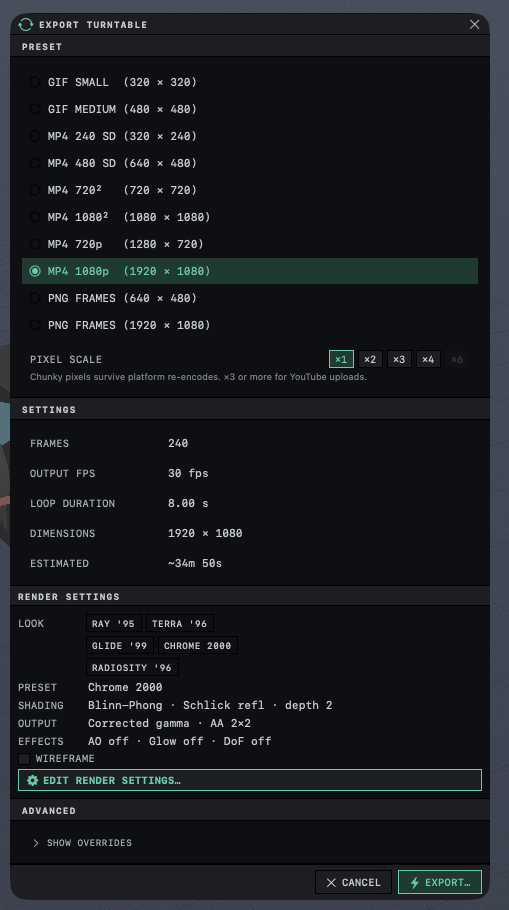
Click EXPORT…, choose a name and a folder, and click Save.
The sheet counts the frames as they render, as in 12 / 240 with FRAME 12 OF 240 under a progress bar. Once the second frame is done, a time such as ~1m 3s REMAINING replaces ESTIMATING….
Wait for EXPORT COMPLETE.
The sheet shows the file name and, for an MP4 or GIF, its size. SHOW IN FINDER opens its folder, OPEN opens the file, and DONE closes the sheet.
The render uses the look set in RENDER SETTINGS (see Choose a render look). Orbit reads those settings and the scene when the export starts, so changes made while it runs do not reach the file. Depth of field and a transparent background apply to still images only, and a turntable ignores both. The free version stamps each frame with the two marks shown in The free and full versions.
Choose a preset
Each preset sets the format, the size and the number of frames. The LOOP DURATION row shows how long one turn plays.
| Preset | Format | Frames | Frames per second | Length of one turn |
|---|---|---|---|---|
| GIF SMALL (320 × 320) | GIF | 96 | 24 | 4 seconds |
| GIF MEDIUM (480 × 480) | GIF | 120 | 24 | 5 seconds |
| MP4 240 SD (320 × 240), MP4 480 SD (640 × 480), MP4 720² (720 × 720), MP4 720p (1280 × 720) | MP4 | 180 | 30 | 6 seconds |
| MP4 1080² (1080 × 1080), MP4 1080p (1920 × 1080) | MP4 | 240 | 30 | 8 seconds |
| PNG FRAMES (640 × 480) | PNG frames | 180 | 30 | 6 seconds |
| PNG FRAMES (1920 × 1080) | PNG frames | 240 | 30 | 8 seconds |
MP4 is the usual choice for a video to share or edit. A GIF is marked to repeat without end, but it holds only 256 colors in each frame. Skies and chrome can show bands of color that shift from frame to frame, and an MP4 avoids that. PNG FRAMES writes a folder of numbered images, frame_0000.png and on, at the preset's exact size, for editing in another application. For those presets the save panel names the folder.
Change the length
Under ADVANCED, click SHOW OVERRIDES.
FRAME COUNT appears, set to the preset's number of frames.
Drag FRAME COUNT, between 12 and 360.
More frames make a slower spin and a longer file. LOOP DURATION and ESTIMATED follow the new count.
For an MP4 preset, click 24, 30 or 60 beside FPS.
At a higher rate the same number of frames plays in less time, so the spin is faster.
GIF presets stay at 24 frames per second, a rate that older GIF players handle, and the sheet says so in place of the FPS chips. It shows the same GIF line for the PNG FRAMES presets, whose frames are timed at 30 per second. Opening the overrides again resets them to the preset's values, and HIDE OVERRIDES returns the export to them.
Pixel scale
PIXEL SCALE, under the presets, multiplies the size of each frame by 2, 3, 4 or 6 before Orbit encodes the MP4 or GIF, so each pixel of the render becomes a solid square block. At ×2 the MP4 1080p (1920 × 1080) preset writes a 3840 × 2160 video. Chips that would make a side larger than 8192 pixels are dimmed. PNG FRAMES ignores the scale and keeps one image pixel for each render pixel. The sheet returns to ×1 each time it opens. Prepare renders for video and social media gives the reason for the enlargement and suggests a scale.
Effects that move over time
In a turntable, waves, drifting clouds and fog banks move over time, as do plants that sway in the wind and glowing motes. Orbit fits their motion to the length of the turn, as it does for an exported loop, so they match where the file repeats. Water set to CLASSIC with its waves moving cannot repeat and jumps at that point; SPECTRAL water loops. The two kinds of wave are compared in Add water and choose its waves.
Settings animated with Loop Studio lanes (Animate a setting with a lane) stay still in a turntable, which moves only the camera and the effects above. To export that animation, see Export a loop.
Stop an export
Click CANCEL at the bottom of the sheet while the frames render. Orbit stops the frame in progress and the sheet reads EXPORT CANCELLED and "No partial file written." Esc, or the X at the top of the sheet, stops the export and closes the sheet. When a file of the same name was already there, it stays as it was.
If Orbit cannot finish the file, the sheet reads EXPORT FAILED with the reason it could not write the file or render a frame.
The time estimate
ESTIMATED is a rough figure worked out from the frame size and count and from the number of objects and lights in the scene. It does not account for ANTI-ALIASING, effects or the render look. The REMAINING time shown during the export comes from the frames already finished and is the better guide. To keep the Mac responsive during a long export, lower THREADS in the PERFORMANCE section of RENDER SETTINGS.
Related: Export a wireframe drawing, Export settings.