Grow plants
A GROWTH object is a plant that Orbit grows from the branching rules of a species and a random seed. You pick one of nine species, shape it with a few sliders and reroll it until you like the result. Arrays turn one plant into a forest on a terrain, and a plant can lean in the wind and carry glowing motes.
Add a plant
Choose ADD OBJECT ▸ GROWTH.
A tree appears and is selected, and the INSPECTOR shows the GROWTH section. Each new plant gets a random seed, so two plants added one after the other differ.
Click a species in the grid at the top of GROWTH.
The plant regrows with the rules of that species. The sliders keep their values.
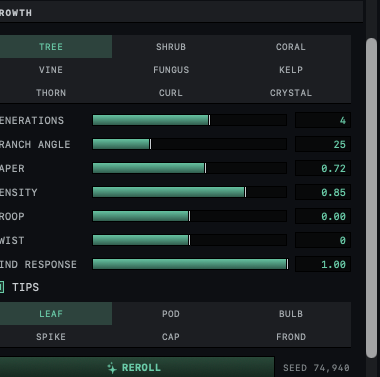
The nine species are TREE, SHRUB, CORAL, VINE, FUNGUS, KELP, THORN, CURL and CRYSTAL. Each has its own way of forking and turning. CRYSTAL has no random turns in its branching, so its branches mirror each other exactly, though DENSITY below 1.00 still leaves some out at random.
A plant's branches reach 2 meters high, the height of a new BOX, whatever its settings. The tips can stand slightly above that. To make it larger or smaller, change its SCALE as in Move, rotate and scale objects.
Shape the plant
The sliders under the species grid reshape the plant.
| Slider | What it changes | Default |
|---|---|---|
| GENERATIONS | How many times the branches fork, from 1 to 6. More generations give more, smaller branches in the same height. | 4 |
| BRANCH ANGLE | How far each fork spreads, in degrees | 25 |
| TAPER | How much thinner each branch is than the one it grows from. Lower values thin out faster. | 0.72 |
| DENSITY | The chance that each branch grows at all. Lower values give a sparser plant. | 0.85 |
| DROOP | Above zero the branches bend toward the ground; below zero they curve upward | 0.00 |
| TWIST | Extra turn, in degrees, around each branch as it forks. No effect on THORN or CRYSTAL. | 0 |
| WIND RESPONSE | How much of the scene wind the plant leans with | 1.00 |
TIPS puts a shape at the end of each branch. Turn it off for bare branches. While it is on, a second grid picks the shape.
| Tip | Shape |
|---|---|
| LEAF | One flat diamond, the default |
| FROND | Three flat blades set around the tip |
| SPIKE | A cone |
| POD | A double cone |
| BULB | A teardrop |
| CAP | A mushroom dome wider than the stem |
Reroll and keep a seed
The seed decides the random details of a plant. With the species, settings and seed unchanged, the plant comes out identical.
Click REROLL.
A new plant of the same species grows with the same settings, and the number after SEED beside the button changes.
- Repeat until the shape suits the scene.
There is no field for typing a seed. To go back to the plant before a reroll, press ⌘Z. The seed is saved with the scene, so the plant comes back unchanged when you reopen the file.
What a plant is made of
A plant is one object, but its branches are separate tubes that overlap where they fork, and the tips are separate shapes set on the branch ends. Nothing is joined into a single closed surface. For that reason the BOOLEAN menu stays dimmed for a growth, and its tooltip says it is "many overlapping branches, not one closed solid."
Plant a forest on a terrain
An array in TERRAIN mode stands copies of a plant on the ground of a terrain, and VARIANTS makes the copies different plants.
- Add a terrain with ADD OBJECT ▸ TERRAIN, then add a plant.
With the plant selected, click ENABLE ARRAY under ARRAY at the bottom of the INSPECTOR, and choose TERRAIN under MODE.
Copies of the plant stand upright on the terrain, and a line reading PLACED gives the number of plants placed.
Set VARIANTS between 4 and 8.
The forest mixes up to that many differently shaped plants of the same species. One of them is the plant you selected.
- Set COUNT for the number of plants and SPACING for the smallest gap between them.
For SLOPE LIMIT, the height limits and the other terrain controls, see Place copies on a terrain. A new REROLL changes the plant you selected and the variants grown from its seed.
Wind and glowing motes
When the scene has wind, a plant leans with it, as far as its WIND RESPONSE allows. At 0.00 the plant stands still. The wind itself is set in the environment, as Make things move in the wind shows.
Below GROWTH, the GLOW MOTES section adds small glowing points around the plant, which suit a night scene. Click ENABLED, then choose whether they gather at the TIPS, in the CANOPY or at the BASE. For their count, size, rise, flicker and color, see Add fireflies and glowing motes.