Make a looping ocean GIF
You turn the SUNSET WATER example into a 320 × 320 GIF of a moving sea, with clouds that drift in a light wind and thicken and thin once in each loop. The GIF plays over and over, and the join between its last frame and its first does not show.
Choose File ▸ Open Example…, click SUNSET WATER and then click APPLY LOOK.
The viewport shows an island in a flat, still sea. APPLY LOOK switches Orbit to TERRA '96, the render look the example was built for, and the GIF will use that look too.
Hold Option and drag slowly down in the viewport until the horizon and a band of sky show above the island.
The camera sinks toward the water and looks out to sea. The clouds you animate later are in that band of sky.
If the view tilts the other way, drag up instead. INVERT ORBIT Y in SETTINGS reverses the direction.
In OBJECTS, the list at the top right of the window, click Wizard Water.
The INSPECTOR below the list shows the settings of the water.
Scroll the INSPECTOR down to EDITOR and click EDIT WATER….
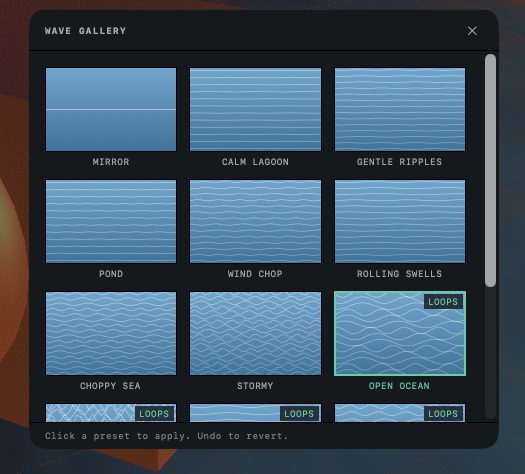
The WAVE GALLERY opens.
Click OPEN OCEAN, then close the gallery with the X at its top right.
Waves spread across the water and break up its reflection of the sky. OPEN OCEAN carries the LOOPS badge, which marks the seas that keep moving during a loop and still repeat without a jump.
Click the ENVIRONMENT card at the bottom right of the window.
The ENVIRONMENT BROWSER opens, with the settings of the scene's sky on its right side.
Scroll the right side of the panel down to WIND. Click the number at the right end of the STRENGTH slider, type
0.4and press Return. Then close the panel with the X in its title bar.Nothing in the viewport changes. Wind, waves and drifting clouds move only during Loop Studio playback and in exported loops and turntables. The rest of the time they hold still at the loop's first frame.
Click LOOP STUDIO, at the top left of the window.
The window switches to Loop Studio. The PLAYBACK column sits beside the viewport, and PARAMETERS and AUTOMATION LANES fill the bottom of the window, with NO LANES YET under AUTOMATION LANES. A square frame marked 1:1 shows the part of the view that goes into the GIF. At the top of PLAYBACK, WATER · NO POP ✓ says the waves will repeat without a jump.
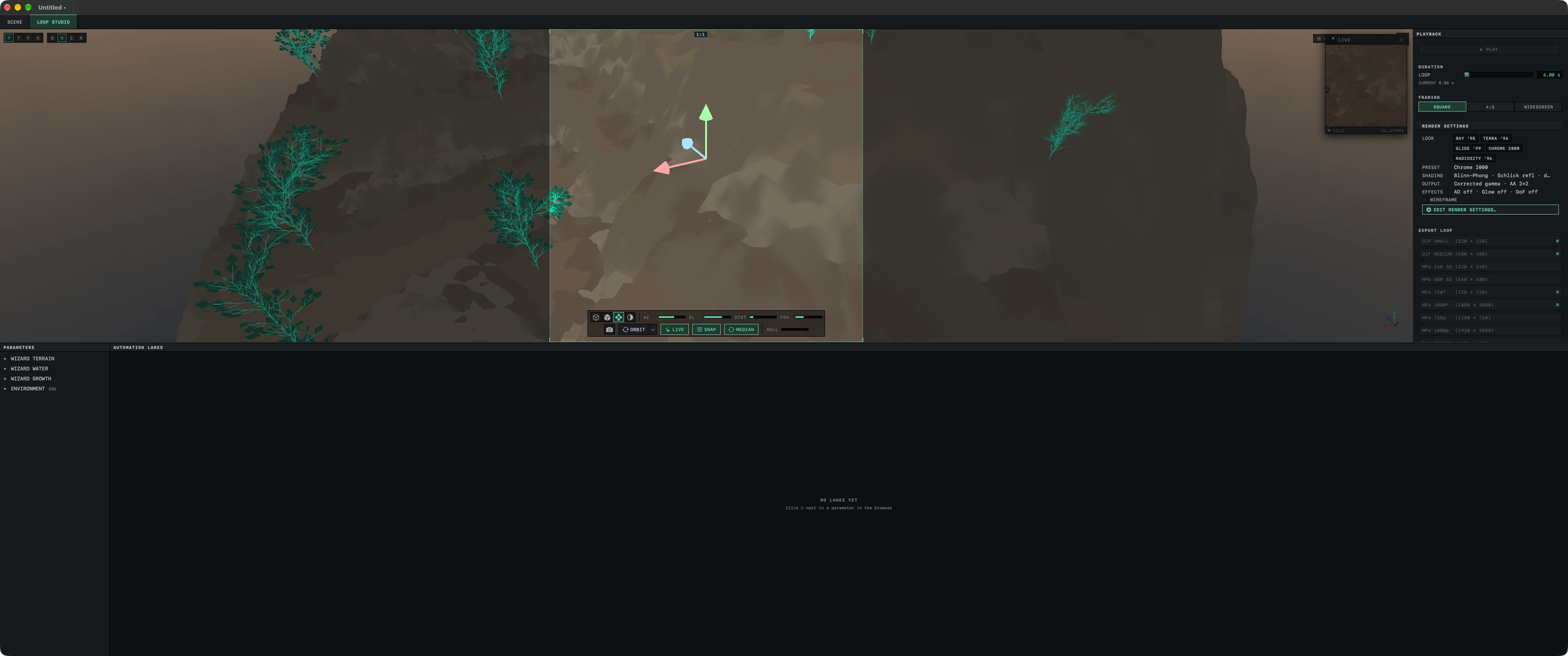
Click ▶ PLAY in PLAYBACK. Watch for a few seconds, then click ■ STOP.
The waves move and the clouds drift with the wind. The loop starts again every 6 seconds, the length set by LOOP under DURATION. ■ STOP returns the sea and the sky to the first frame.
In PARAMETERS, click ENVIRONMENT, the last entry in the list. In the settings that open below it, scroll to Cloud Coverage and click it.
A lane named Environment · Cloud Coverage appears under AUTOMATION LANES, and LOOP · NO POP appears above WATER · NO POP ✓ at the top of PLAYBACK. A lane moves one setting up and down in a repeating wave. This one moves the share of the sky that clouds cover, starting as a smooth SINE wave with a RATE of 0.50 Hz, which is half a cycle per second. The hint under RATE reads × 3 cycles · no pop because three whole cycles fit in the loop's 6 seconds.
The WIND tag beside Cloud Coverage is a reminder that the wind already moves the clouds. The lane changes how much of the sky they cover.
Click the number beside RATE, type
0.17and press Return.The hint turns amber and reads × 1.02 cycles · will pop at loop seam, and LOOP · NO POP changes to an amber LOOP · 1 WILL POP. A lane repeats without a jump only when its wave completes a whole number of cycles in the loop. At 0.17 Hz the wave has gone slightly past one cycle when the loop ends, so the last frame of the loop no longer matches the first and the GIF would jump at that point.

Click SNAP beside the hint.
RATE changes to exactly one cycle per loop, about 0.167 Hz, and the hint reads × 1 cycles · no pop. The readout still shows 0.17 Hz because it rounds to two decimals. LOOP · NO POP returns at the top of PLAYBACK.
Click ▶ PLAY, watch one full loop, then click ■ STOP.
The clouds keep drifting, and the cover thickens and thins once in each loop.
Scroll down PLAYBACK to EXPORT LOOP and click GIF SMALL (320 × 320). Choose a folder and click Save.
Orbit renders the loop's 144 frames one after another. PLAYBACK counts the finished frames, with a percentage and an estimate of the time left, and CANCEL stops the export without leaving a partial file. When the last frame is done, the file name appears with a check mark. The suggested name begins with
Orbit-Animation-.The free version puts its two marks on every frame, as described in The free and full versions.
Open the GIF in a web browser or another app that plays animated GIFs.
The waves and the clouds carry on smoothly from the last frame into the first.
For a widescreen video in place of the GIF, click WIDESCREEN under FRAMING before you export, then click MP4 720p (1280 × 720). A small square marks each preset whose shape matches the frame in the viewport.
The toolbar, the OBJECTS list and the INSPECTOR stay out of sight in Loop Studio. SCENE, at the top left, brings them back for a change to an object, and LOOP STUDIO returns you to the lane and the loop settings. To keep the lane, the waves and the wind in a scene file, choose File ▸ Save Scene As….
How loops work explains why a loop needs whole cycles and which effects move without a lane. If nothing moves or a loop jumps where it repeats, see Loop and video problems.
Next: Drill a hole through a block.