Repeat objects with arrays
An array fills the scene with copies of one object. The copies can be scattered at random around it, set out in a grid, a ring or a line, spread over a terrain or strung along a spline tube. Start with the object you want to repeat selected. The ranges and defaults of each control are listed in Array settings.
Turn on an array
- Select the object, then scroll to ARRAY at the bottom of the INSPECTOR.
Click ENABLE ARRAY.
The row reads ARRAY ENABLED, and 20 copies of the object appear at random positions around it. MODE reads SCATTER, the layout a new array starts with.
Drag COUNT to set the number of copies, from 1 to 200.
Copies appear or disappear as you drag.
Drag VOLUME to spread the copies further out or pull them in.
The copies land inside a box that reaches VOLUME meters from the object in each direction.
The copies are not separate objects. Clicking any of them selects the original, and a change to the original, such as a new material or a deformer, shows on the copies at once. Click ARRAY ENABLED to turn the array off; the settings are kept for the next time you turn it on.
An array also keeps its object out of booleans. The result would keep only the original, so the BOOLEAN menu stays dimmed until the array is off.
Choose a layout
Open MODE and choose a layout. The controls below it change with the mode.
| Mode | Where the copies go | Controls |
|---|---|---|
| SCATTER | At random inside a box around the object | COUNT, VOLUME |
| GRID | In rows, columns and layers, centered on the object | COLUMNS, ROWS, DEPTH, SPACING |
| RADIAL | In a ring around the object, each copy facing outward | COUNT, RADIUS, RINGS, HEIGHT |
| LINEAR | In a line centered on the object | COUNT, AXIS, SPACING, SCALE STEP, ROT STEP |
| TERRAIN | Standing on the ground of a terrain | See Place copies on a terrain |
| PATH | Spaced evenly along a spline tube | See Line copies up along a tube |
In GRID, COUNT is hidden, and the line under MODE gives the number of copies the grid makes. A grid stops at 500 copies, whatever the three numbers multiply to.
In RADIAL, RINGS stacks several rings and shares COUNT among them, and HEIGHT sets the distance between one ring and the next.
In LINEAR, AXIS picks the direction of the line and SPACING the gap between copies. With SCALE STEP above 1.00 each copy is larger than the one before it, and below 1.00 each is smaller. ROT STEP turns each copy a little further around the line than the last.
Loosen the pattern
In every mode except LINEAR, the controls under VARIATION make the copies less alike.
ROTATION turns each copy by a random amount, up to the angle you set. In SCATTER, GRID and RADIAL the copies tumble in any direction. In TERRAIN and PATH they turn only around the vertical, so they stay upright.
SCALE MIN and SCALE MAX set the smallest and largest size a copy can have, as a multiple of the original. Set both to 1.00 to make the copies the same size.
POSITION moves each copy a random distance from its place. It works in SCATTER and GRID; in the other modes the slider is shown but has no effect.
Shuffle the layout with a seed
The random choices of an array come from its SEED, a number from 1 to 999. A seed gives the same layout every time it is used, so note down a seed you like to come back to it.
Drag SEED, or click the button beside it to pick a new seed at random.
The copies take new turns and sizes, and in SCATTER, GRID and TERRAIN new positions. The pattern of the mode stays the same. LINEAR has no random choices, so a new seed leaves its layout as it was.
The seed is saved in the scene file with the rest of the array.
Mix different plants in one array
On a GROWTH object, ARRAY has one more slider, VARIANTS. Set it above 1 and the array mixes up to 8 differently shaped plants of the same species and settings. One of them is the plant you selected, and the others are grown from seeds derived from its own.
VARIANTS appears only on growths, because a growth is the only kind of object the array can regrow from a different seed. Copies of other objects share one shape, and the VARIATION controls change only their size, turn and position. For growth objects themselves, see Grow plants.
Place copies on a terrain
Use TERRAIN mode to cover a landscape with trees, rocks or posts. The scene needs a terrain; Build a terrain shows how to add one.
Select the object to repeat, turn on its array and choose TERRAIN under MODE.
The copies stand upright on the ground of the terrain under the object, or of the nearest terrain when the object is not above one. A line under the settings reads PLACED followed by the number of copies placed and the number asked for.
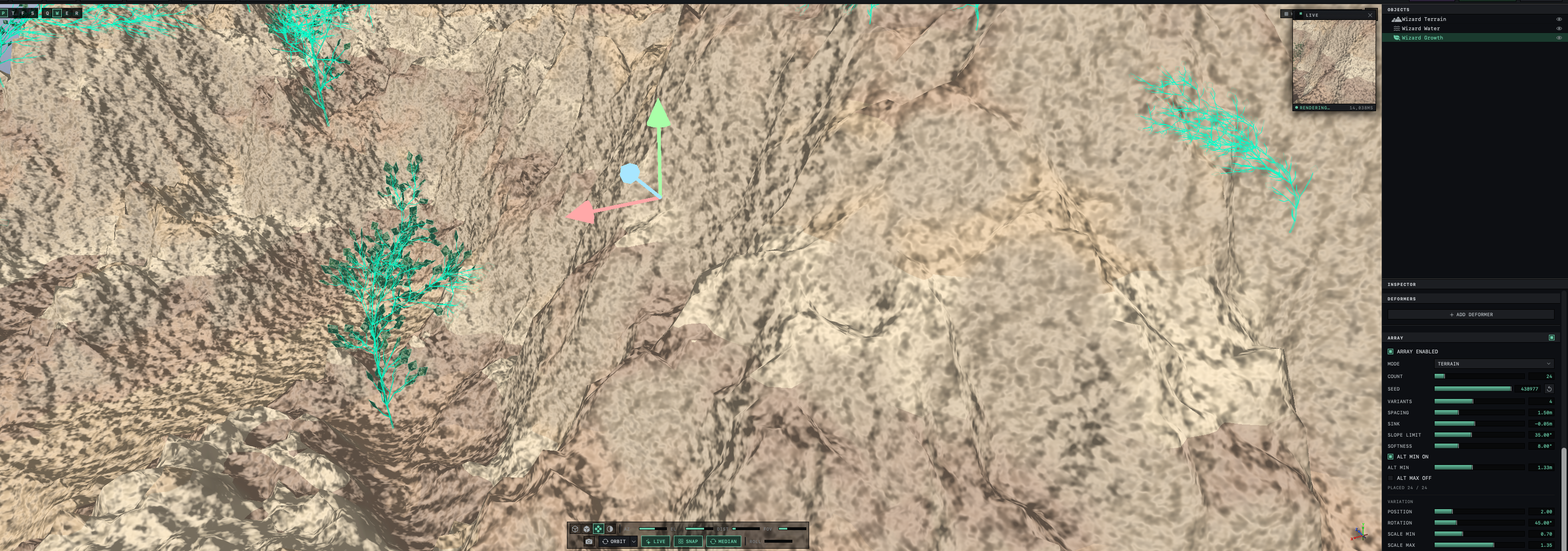
- Drag SPACING to set the smallest distance allowed between two copies.
Drag SLOPE LIMIT to keep copies off steep ground.
Ground steeper than the angle gets few or no copies. SOFTNESS thins them out gradually around that angle, so the edge is not a hard line.
To keep copies above or below a height, click ALT MIN OFF or ALT MAX OFF, then drag the slider that appears.
ALT MIN keeps copies above that height, for example out of the water, and ALT MAX keeps them below it.
Adjust SINK to set the copies deeper into the ground or lift them.
Each copy's pivot is set on the ground, lowered or raised by SINK. A plant's pivot is at its base, so below zero it sits slightly under the surface. An object whose pivot is at its middle, such as a BOX, stands half buried.
Raising COUNT adds copies and lowering it removes some; the copies already placed stay where they are.
Orbit tries a fixed set of 2,048 spots on the terrain and keeps those that pass SPACING, SLOPE LIMIT and the height limits. When the limits leave fewer spots than COUNT, the line reads SPACING SATURATED after the numbers. Lower SPACING or relax the limits to fit more copies. NO TERRAIN IN SCENE means Orbit found no terrain, and only the original object is shown.
Line copies up along a tube
Use PATH mode for fence posts, lamps or stones following a winding line. The line comes from the spine of a spline tube.
- Add a tube with ADD OBJECT ▸ SPLINE TUBE, then move the points of its spine into the line you want.
Select the object to repeat, turn on its array and choose PATH under MODE.
The copies are spaced evenly along the spine, and the line under the settings reads "Follows the nearest spline tube's spine."
- Drag COUNT to set how many copies share the length of the spine.
Leave ALIGN TO PATH on to turn each copy to face along the curve, or click it to switch it to ALIGN OFF and keep the copies facing the same way.
Copies turn only around the vertical, so they stay upright on a spine that climbs or falls.
The array follows the spline tube whose center is nearest the object, and there is no control to choose another one. Move the object closer to the tube you want. With no spline tube in the scene, the line under the settings turns amber, and only the original object is shown until you add one.