Save, open and recover scenes
Save the open scene as a .orbit file and open it again later from the File menu, from Finder or from the list of recent scenes. If Orbit quits unexpectedly with unsaved changes, the next start offers to bring that work back.
Orbit has one window, and it holds one scene at a time. Opening a scene or starting a new one replaces the scene in the window, and closing the window quits Orbit.
Save a scene
Choose File ▸ Save Scene, press
⌘Sor click SAVE in the toolbar.A scene that has never been saved opens the Save panel, with the name
Untitled Scene.orbitfilled in.Type a name, choose a folder and click Save.
The title bar of the window shows the file name. The dot after it, which marks unsaved changes, is gone.
From then on, ⌘S writes over the same file without a panel. Any change that ⌘Z can take back puts the dot back, and so does adding, updating or deleting a camera snapshot.
To keep a copy under another name or in another folder, choose File ▸ Save Scene As… or press ⌥⇧⌘S. The window then belongs to the new file, and later saves go there.
When Orbit cannot write to the file in its old place, for example because its folder was moved or locked, ⌘S opens the Save panel so you can pick a new one. A message that begins "Scene saved with warnings" names images the file could not take in, usually because they were moved or deleted. Choose each image again in its material, then save again.
What a scene file holds
A .orbit file holds the objects with their materials, deformers and mesh edits, the lights and groups, the environment, the camera and view, the camera snapshots and the Loop Studio lanes. Images used by materials are copied into the file, reduced to 1,024 pixels along the longer side. The material and environment presets the scene uses go into the file too, except the ones built into Orbit. Opening a scene that carries presets adds them to the MATERIAL BROWSER and ENVIRONMENT BROWSER, and they stay there after the scene is closed.
Render settings stay out of the file. The look on the RENDER card, the export settings and everything in SETTINGS belong to Orbit on this Mac, so a scene opens in whichever look is chosen at the time. More on this split is in Render settings and scene files, and File types lists the kinds of file Orbit reads and writes.
Open a scene
Choose File ▸ Open Scene…, press
⌘Oor click OPEN in the toolbar.If the scene in the window has unsaved changes, Orbit first asks whether to save them. Then the Open panel appears.
Select a
.orbitfile and click Open.The scene replaces the one in the window, with the camera where it was when the file was saved.
Undo starts empty in the opened scene, so ⌘Z cannot bring back the scene that was there before.
Answer the save prompt
Before a scene with unsaved changes is replaced or closed, Orbit asks Save changes to the current scene? The question comes before a new scene, an opened scene or example, a scene double-clicked in Finder and closing the window. Quitting with ⌘Q asks Save changes before quitting? with the same three buttons.
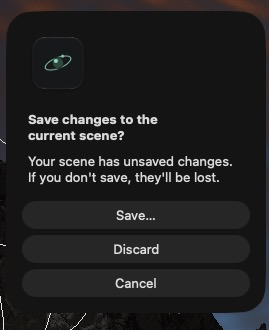
| Button | Result |
|---|---|
| Save… | Saves the scene, through the Save panel if it has no file yet, then goes ahead. If you cancel the panel or the save fails, nothing is replaced and the scene stays open. |
| Discard | Throws the unsaved changes away and goes ahead. |
| Cancel | Stops. The scene stays as it is. |
Open a recent scene
File ▸ Open Recent lists up to five scenes opened or saved most recently, newest first. Choose one to open it, after the same save prompt. Clear Menu at the bottom of the list empties it. The RECENT list on the WELCOME sheet shows the first four of the same scenes.
Orbit runs in the App Sandbox, a macOS protection that lets an app reach a file outside its own folders only after you choose that file, in an Open or Save panel or in Finder. For each recent scene Orbit keeps a bookmark, a stored copy of that permission, so the scene opens again after a restart and ⌘S can write to it.
A scene that has been deleted drops off the list. When a bookmark no longer reaches its file, choosing the entry shows a message that Orbit no longer has access to it, and the entry is removed. Open the file once with File ▸ Open Scene… and it returns to the list. A recent file does not open has the details.
Open a scene from Finder
Double-click a .orbit file in Finder. If Orbit is not running, it starts with that scene and skips the WELCOME sheet. If Orbit is running, the scene replaces the one in the window, after the save prompt.
Other Orbit files do different things on a double-click. An .orbitobj file adds its objects to the open scene, as described in Import and export objects. A material or environment preset file is copied into its browser and changes nothing in the scene. An .obj file does not open in Orbit this way.
Recover work after Orbit quits unexpectedly
While the scene has unsaved changes, Orbit keeps a copy of it in the background. Orbit checks the scene 10 seconds after it starts and every 30 seconds after that, and each check that finds new changes replaces the copy. Saving, opening another scene, a normal quit and Discard in the save prompt all delete it. The copy survives only when Orbit stops without quitting normally, as in a crash or a force quit.
When Orbit starts with the message Recover unsaved work?, click Recover.
The work opens as a new untitled scene behind the WELCOME sheet. The scene file you last saved stays as it was.
The message says how long ago the copy was made and, if the scene had a file, names it.
Press Esc to close the WELCOME sheet.
The recovered scene is in the window.
Press
⌘S, choose a name and a folder, and click Save.The title bar shows the new name.
The copy can lack up to the last 30 seconds of work before Orbit stopped, and undo starts empty. Discard deletes the copy, and Orbit does not offer it again. When the message does not appear after a crash, or Orbit reports that it could not read the copy, see Orbit offers to recover unsaved work.
Related: Start from an example or the Scene Wizard, What undo covers and File types.