Run any command by name
The command palette runs an Orbit command when you type part of its name. From the keyboard it reaches commands in the toolbar menus, the sheets and the panels, and it applies material and sky presets by name with no browser open.
Run a command
Press
⌘K.A box opens near the top of the window, with a field reading "Type a command" above a list of commands.
Type part of the name of the command, such as
tor.The list keeps the commands that match, best match first. ADD TORUS comes before ADD TORUS KNOT.
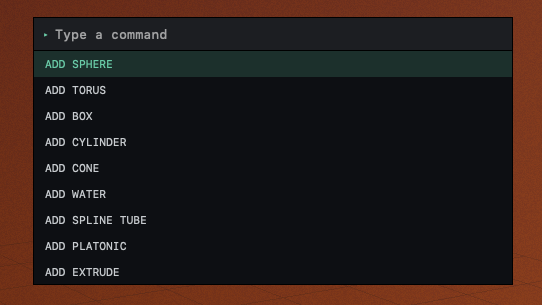
Press ↓ or ↑ to highlight the command you want, then press Return.
The palette closes and the command runs. Clicking a command in the list runs it too.
To close the palette without running anything, press Esc, press ⌘K again or click outside the box.
The letters you type need not sit next to each other in the name. A match at the start of a word ranks higher, so the first letters of each word are usually enough. sky: sun finds SKY: SUNSET. The list shows nine commands at a time; type more letters to bring others into view. When nothing matches, the list reads "No matching command."
Where a command has a keyboard shortcut, the shortcut appears at the right of its line, such as ⌘D beside DUPLICATE. With the field empty, the list starts with the last eight commands you ran, until you quit Orbit.
Commands that depend on the selection
Commands that act on the selection are listed only when the selection suits them. DUPLICATE, DELETE, LOCK / UNLOCK and the MATERIAL: presets appear once something is selected. GROUP needs two or more selected items, and UNGROUP a selected group row. The BOOLEAN commands appear when the selected objects can be combined, and the poly edit commands only in poly edit mode.
If a command you expect is missing, check what is selected in OBJECTS and open the palette again.
LOCK / UNLOCK in the palette switches every selected item, while ⌘L switches only the item you selected last.
What the palette holds
| Kind | Commands | What to know |
|---|---|---|
| Adding objects | ADD SPHERE, ADD TORUS and the other object types, ADD LIGHT, PEN: DRAW STROKES | A new object appears at the center of the scene. |
| Views | VIEW PERSPECTIVE, VIEW TOP, VIEW FRONT, VIEW SIDE, FRAME SELECTION and the four VIEW MODE: commands | FRAME SELECTION with nothing selected brings the whole scene into view. |
| Toggles | TOGGLE GRID, TOGGLE LIVE PREVIEW, TOGGLE SNAP, TOGGLE AUTO ORBIT, TOGGLE BOTTOM DOCK, EXPAND / COLLAPSE VIEWPORT, PIVOT: MEDIAN / EACH and others | Each one switches a setting on or off. |
| Selection | HIDE SELECTION, UNHIDE ALL, ISOLATE SELECTION, DUPLICATE, DELETE, DROP TO GROUND, CENTER TO ORIGIN, GROUP, UNGROUP and more | Most appear only with a selection. |
| Sheets and panels | OPEN SETTINGS, OPEN RENDER SETTINGS, EXPORT RENDER, EXPORT TURNTABLE, MATERIAL BROWSER, ENVIRONMENT BROWSER, WELCOME SCREEN | Each opens a sheet or a floating panel. |
| Files | NEW SCENE, OPEN SCENE…, SAVE SCENE, SAVE SCENE AS…, OPEN EXAMPLE…, the two import commands and OPEN: followed by the name of each recent scene | NEW SCENE and OPEN SCENE… ask about unsaved changes first. |
| Render looks | LOOK: RAY '95, LOOK: TERRA '96, LOOK: GLIDE '99, LOOK: CHROME 2000, LOOK: RADIOSITY '96 | A look is a render setting, so ⌘Z does not reverse it. Choose another look to change it. |
| Lighting | LIGHTING: THREE-POINT, LIGHTING: STUDIO and the other four rigs | Replaces every light in the scene, as the LIGHTING menu does. |
| Materials | MATERIAL: followed by the name of each preset that comes with Orbit and each one you saved, such as MATERIAL: BRUSHED METAL | Gives the material to every selected object in one undo step. Listed only with a selection. |
| Skies | SKY: followed by the name of each sky preset, including the ones you saved, such as SKY: SUNSET | Replaces the environment of the scene in one undo step. |
| Modeling | BOOLEAN UNION, BOOLEAN SUBTRACT, BOOLEAN INTERSECT, SPLIT X, SPLIT Y, SPLIT Z, MAKE EDITABLE and the poly edit tools | Listed when the selection allows them. The poly edit tools run at fixed amounts; use the INSPECTOR to set others. |
The full list, with the condition for each command, is in Menus and palette commands.
Open the Scene Wizard from the File menu
The palette lists SCENE WIZARD, but opened from the palette the wizard does not keep a copy of the scene first. A roll then replaces the scene with nothing to go back to, and CANCEL undoes an earlier change.
Open the wizard with File ▸ New from Scene Wizard…, with ⇧⌘N or with NEW ▸ SCENE WIZARD… in the toolbar. Opened that way, it keeps a copy of the scene that CANCEL restores. To recover after opening it from the palette, see CANCEL in the Scene Wizard did not restore the scene.
Related: Keyboard shortcuts and mouse gestures, Apply and edit materials and Set the sky, sun, fog and clouds.