Report a problem
When Orbit crashes or does something wrong, save its activity log as one text file and send it with a short description of what happened. The file shows which version of Orbit was running and what it was doing, which helps narrow down the cause.
The log controls are in the DIAGNOSTICS section of SETTINGS.
Export the logs
Click SETTINGS at the right end of the toolbar, then scroll down to DIAGNOSTICS.
The section says that the log stays on the Mac and takes up at most 10 MB. Below that are three buttons, EXPORT LOGS, OPEN FOLDER and CLEAR LOGS.
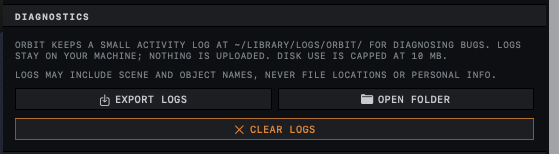
Click EXPORT LOGS.
A Save panel opens, with a name made from the date and time, such as
orbit-diagnostics-20260929-143012.txt.Choose a folder, such as the Desktop, and click Save.
Orbit saves the text file there.
If Orbit says it could not write the file, the folder may not accept new files. Save to another folder.
What the file holds
The file starts with the version and build number of Orbit, the version of macOS, the kind of processor, the amount of memory and the purchase status. After that come records of up to three recent crashes, newest first, and then the activity log, oldest first.
In the header and the crash records, Orbit writes ~ in place of the path to your home folder. The log can include the names of scenes and objects, but no file locations or other personal details. The file is plain text, so you can open it in TextEdit and read it before you send it.
Write the report
Describe the problem so that someone else could make it happen again.
- List what you were doing, step by step, up to the moment it went wrong.
- Give what you expected and what happened instead, with the exact wording of any message.
- Note whether it happens every time you repeat the steps, sometimes or only once.
- Attach the text file from EXPORT LOGS. If the problem shows up in one particular scene, attach its
.orbitfile as well, and add a screenshot when there is something to see.
Send the report to the address on the contact page.
Orbit uploads nothing. The logs stay on the Mac, and only the files you attach to a report leave it.
Open or clear the log folder
OPEN FOLDER shows the log files in a Finder window. The folder path printed in the section may not match where the files are, because Orbit runs in the App Sandbox and macOS keeps a sandboxed app's files in a separate folder. OPEN FOLDER goes to the right place.
CLEAR LOGS asks Delete all Orbit log files? Click DELETE LOGS to delete the log history, after which Orbit starts a fresh log, or CANCEL to keep it. The records of past crashes are not deleted, and the next export still includes them. To send a log that covers only the problem, clear the logs, make the problem happen again and then export.
Related: File and purchase problems and App settings.