Save camera angles
A camera snapshot keeps a view of the scene so that a keystroke or a click brings the camera back to it. A scene holds up to nine snapshots, and saving the scene stores them in its file.
⌘Z does not bring back an earlier camera position, so a saved snapshot is how you return to a view after the camera has moved on. For circling, zooming and framing, see Move the camera and change views.
Save a snapshot
- Set up the view you want to keep.
Press
⇧⌘S.Orbit saves the view and renders a small picture of it.
In the dock at the bottom of the window, click the SNAPSHOTS tab.
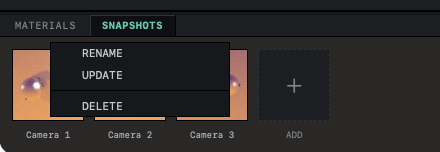
The strip shows a card named Camera 1 with the picture. The count beside the tabs reads 1/9, and the next snapshot you save is named Camera 2.
If the dock is hidden, press ⌘J to show it.
The camera icon in the controls panel at the bottom of the viewport saves a snapshot in the same way. So does the ADD card at the end of the SNAPSHOTS strip, and SAVE CAMERA SNAPSHOT in the menu you get by right-clicking an empty part of the viewport.
A snapshot records the position of the camera, the point it looks at and its FOV and ROLL settings.
Go back to a snapshot
Click a card in the SNAPSHOTS strip, or press ⌘1 to ⌘9. The number counts cards from the left, so ⌘1 recalls the first card. The camera glides from the current view to the saved one.
A snapshot does not record whether the viewport was in the perspective view or in the Top, Front or Side view. If one of those flat views is on when you recall a snapshot, the camera moves but the view stays flat, and the result can look tilted. Press 1 for the perspective view first, then recall the snapshot.
Rename, update or delete a snapshot
Right-click the card in the SNAPSHOTS strip and choose RENAME.
A text field replaces the name under the card.
Type a new name and press Return.
The card shows the new name. A blank name leaves the old one in place.
To replace the view a card holds, set up the new view, right-click the card and choose UPDATE. The card keeps its name and its place in the strip and gets a new picture.
DELETE in the same menu removes the snapshot. The cards to its right move one place to the left, and their ⌘ numbers go down by one.
Nine at most
The limit of nine matches the keys ⌘1 to ⌘9; ⌘0 already expands the viewport. With nine snapshots in the scene, the ADD card disappears and the camera icon is turned off. Pressing ⇧⌘S then brings up a message saying that all nine slots are full. Update or delete a card to make room.
Snapshots, the scene file and undo
Snapshots belong to the scene. Saving the scene stores them with their pictures, and opening the scene brings them back. New Scene starts with an empty strip.
Saving, updating, renaming or deleting a snapshot marks the scene as unsaved, but ⌘Z does not reverse any of them. Undo keeps copies of the objects, lights, groups, environment and Loop Studio lanes, and the camera and its snapshots are not among them. After a mistake, the scene file as you last saved it still holds the snapshots from that moment.
Related: What undo covers, Keyboard shortcuts and mouse gestures and Save, open and recover scenes.