Export a loop
Orbit renders each frame of a loop in full and saves the result as an animated GIF, an MP4 video or a folder of numbered PNG pictures. You pick the shape of the frame, a preset for the size and format and, for GIFs and videos, how large each pixel should be.
The presets under EXPORT LOOP are gray until the scene has something that moves, such as a lane, moving water, something the wind moves or glowing motes. PLAY and the export presets are grayed out lists what counts.
Choose the framing
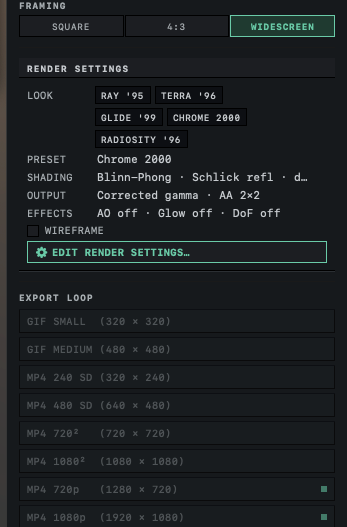
In PLAYBACK, under FRAMING, click SQUARE, 4:3 or WIDESCREEN.
The frame in the viewport takes that shape, and the view outside it is dimmed. Under EXPORT LOOP, a small square appears beside each preset of the same shape.
- Move the camera until the part of the scene you want sits inside the frame, as in Move the camera and change views.
FRAMING changes only the frame in the viewport. Each preset keeps its own size and shape, and the presets marked with the small square export exactly the area inside the frame. A new scene starts on SQUARE. With 4:3 chosen, the label on the frame reads 16:9, a known error described in The frame label reads 16:9 with 4:3 framing.
Choose a preset
| Preset | Format | Frames per second | Frames in a 6-second loop |
|---|---|---|---|
| GIF SMALL (320 × 320), GIF MEDIUM (480 × 480) | Animated GIF, square | 24 | 144 |
| MP4 240 SD (320 × 240), MP4 480 SD (640 × 480) | MP4 video, 4:3 | 30 | 180 |
| MP4 720² (720 × 720), MP4 1080² (1080 × 1080) | MP4 video, square | 30 | 180 |
| MP4 720p (1280 × 720), MP4 1080p (1920 × 1080) | MP4 video, widescreen | 30 | 180 |
| PNG FRAMES (640 × 480) | Folder of PNG pictures, 4:3 | 30 | 180 |
| PNG FRAMES (1920 × 1080) | Folder of PNG pictures, widescreen | 30 | 180 |
GIFs run at 24 frames per second and the other formats at 30, and neither rate can be changed. The number of frames is the loop's length times the rate, so a 60-second loop exported as an MP4 has 1800 frames to render.
A GIF can hold only 256 colors in each frame, and smooth skies or chrome can show bands or flicker. An MP4 has no such limit. PNG FRAMES saves every frame as an exact picture, for a video editor or another program that builds GIFs.
The frames use the render look shown under RENDER SETTINGS, above EXPORT LOOP. Its LOOK buttons switch between the looks in Choose a render look, and EDIT RENDER SETTINGS… opens the full settings. A loop export always has a background, even with transparent backgrounds turned on for still renders.
Export the loop
Scroll PLAYBACK down to EXPORT LOOP and click a preset.
Playback stops if it was running, and the Export Loop save panel opens with a name such as
Orbit-Animation-20260929-143000.gif, from the date and time.Choose a folder and a name, and click Save.
The presets give way to a count of finished frames with a percentage, a bar, an estimate of the time left and CANCEL.
Wait until the last frame is done.
A check mark and the name of the file appear at the bottom of EXPORT LOOP.
Orbit saves the file in the folder you chose in the save panel. For PNG FRAMES, the name you enter is a folder; Orbit creates it and fills it with frame_0000.png, frame_0001.png and so on, which video editors read in order.
CANCEL stops the export and removes the unfinished file, and Cancelled appears in the same place. If the export fails, an amber line gives the reason. Try saving to a different folder first.
Orbit takes a copy of the scene and the render settings when the export starts, so edits made during the export are not in the file. In the free version every frame carries the watermark; see The free and full versions.
Enlarge the pixels
PIXEL SCALE, below the presets, turns each rendered pixel into a solid block before Orbit writes a GIF or an MP4. At ×3, MP4 720p (1280 × 720) becomes a 3840 × 2160 video in which every pixel of the render is a 3 × 3 block. Large blocks keep hard pixel edges and dither patterns intact when a video site compresses the file again. The video looks blurry or blocky after upload explains why the scale matters for uploads.
Beside PIXEL SCALE, click ×1, ×2, ×3, ×4 or ×6.
The chosen scale is highlighted.
- Click a GIF or MP4 preset and export as above.
A GIF or a video can be at most 8192 pixels on a side. When a scale would pass that, the preset shows CAPPED and the scale it will use; MP4 1080p (1920 × 1080) at ×6 reads CAPPED ×4. PNG FRAMES ignores PIXEL SCALE and saves one image pixel for each rendered pixel. PIXEL SCALE is not saved with the scene and returns to ×1 when you come back to Loop Studio. Look at it before every export.
What the scene file keeps
The scene file keeps the loop length and FRAMING only when the scene has at least one lane. A loop made only of moving water, wind or motes reopens at 6 seconds and SQUARE. To keep both settings, add a lane and mute it with M before you save. Muted, it has no effect on the loop.
Related: Make a loop without a jump, Prepare renders for video and social media and Loop and video problems.