Make things move in the wind
One wind blows through the whole scene. It bends and sways plants, drifts clouds and fog banks and carries glowing motes downwind, and water can take its direction. You set it once in the ENVIRONMENT BROWSER, and Loop Studio plays the movement.
Set the wind
Press
⌘E, or click the ENVIRONMENT card at the bottom right of the window, and scroll the right side of the panel down to WIND.The section has two sliders, DIRECTION and STRENGTH.
Set STRENGTH above 0, for example 0.4.
Plants in the scene lean away from the wind at once, as long as their WIND RESPONSE is above 0, which it is when they are added. Clouds, fog banks and motes do not move yet.
Drag DIRECTION to choose where the wind comes from, in degrees from 0 to 360.
The plants turn to lean away from the new direction as you drag.
The wind has no on or off switch. A STRENGTH of 0, where every new scene starts, is a dead calm in which plants stand straight and nothing drifts. The wind is saved with the scene, and applying an environment preset or a ROLL replaces it along with the rest of the environment.
What the wind moves
Each kind of object responds to the wind only when the setting in the second column allows it.
| What moves | What it needs | What the wind does |
|---|---|---|
| Plants | WIND RESPONSE above 0 in the GROWTH section | Leans the plant by STRENGTH times WIND RESPONSE, and during playback sways it gently around that lean |
| Glow motes and emitters | WIND RESPONSE above 0 on the plant or the EMITTER | Carries the motes downwind as they rise |
| Clouds | ENABLED in the CLOUDS section | Drifts the clouds across the sky |
| Fog banks | LAYERED fog with NOISE AMOUNT above 0 | Drifts the banks across the ground |
| Water | FOLLOW WIND turned on for that water | Sends the waves in the direction of the wind |
A plant's lean shows as soon as you set the wind, in the viewport and in renders. Everything else in the table moves only while Loop Studio plays and in exported loops and turntables. Outside those, the clouds, fog banks, motes and waves hold still where the loop begins.
The wind does not reshape a terrain or change how thick the fog is or the colors of the sky. The wind settings of plants and motes are on Grow plants and Add fireflies and glowing motes.
Make the water follow the wind
Select the water, and in the RIPPLES section of the INSPECTOR turn on FOLLOW WIND.
The waves turn to travel with the wind, and the water's own WIND DIR slider is dimmed.
FOLLOW WIND is dimmed while BUMP ENABLED is off.
Change DIRECTION in the WIND section.
The waves turn with it.
Water takes only the direction of the wind, and STRENGTH has no effect on the waves. How rough a sea looks depends on its own settings, described in Add water and choose its waves.
Watch the wind in Loop Studio
Click LOOP STUDIO, at the top left of the window.
The window switches to the Loop Studio layout.
Click ▶ PLAY in the PLAYBACK column.
The plants sway, the clouds and fog banks drift and the motes stream downwind. With swaying plants in the scene, ▶ PREPARING counts up first while Orbit builds their frames.
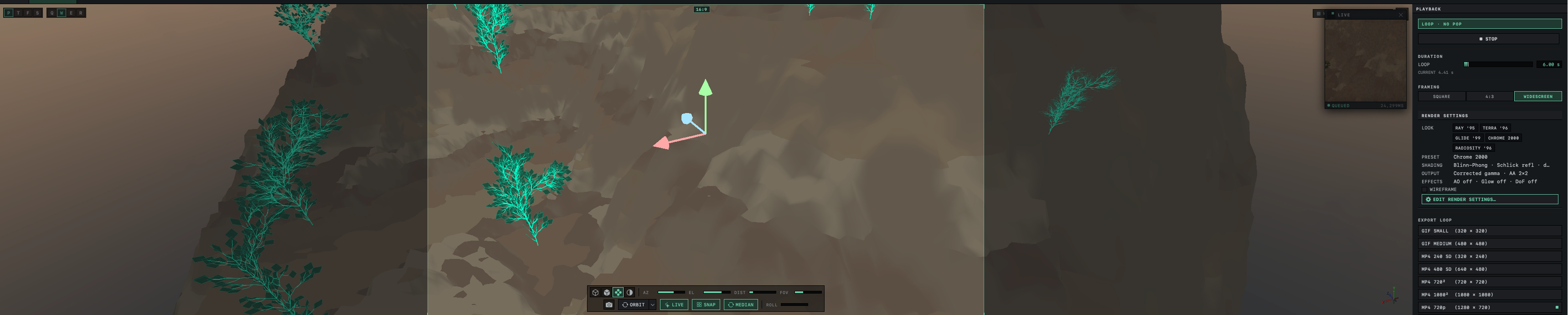
Click ■ STOP.
Everything returns to its place at the start of the loop.
▶ PLAY is dimmed when nothing in the scene can move. Wind alone does not count, because playback needs a plant with WIND RESPONSE above 0, clouds, layered fog banks or something else from the table above. In a loop, every sway and drift is fitted to the length of the loop, so the last frame joins the first without a jump. Export a loop saves the result as a GIF or a video.
Wind and lanes
The wind's DIRECTION and STRENGTH cannot be put on a lane, the Loop Studio control that moves one setting up and down as the loop plays. Neither is in the PARAMETERS list. Orbit places each drifting cloud, fog bank and mote by how far a steady wind carries it in the time since the loop began. A wind that changed during the loop would make them jump, and the loop would no longer join up.
Lanes on other settings work alongside the wind, including the settings that PARAMETERS marks with the WIND tag, such as Cloud Coverage, Fog Density and the plant settings. A lane on a plant's Droop or Twist, for example, adds a movement the wind cannot make. Lanes themselves are explained in Animate a setting with a lane.