Select objects
Click an object in the viewport, or its row in the OBJECTS list on the right, to select it, and hold Shift, or Command in the list, to select more than one. The selection decides what the gizmo moves, what the INSPECTOR shows and what a material card, the Delete key or BOOLEAN acts on. A few commands act only on the item you selected last, the active item.
Select in the viewport
Click an object.
The object is selected on its own, and the earlier selection is cleared. Its row in OBJECTS is highlighted, and the INSPECTOR shows its name and settings.
Hold Shift and click a second object.
Both objects are selected. The INSPECTOR shows 2 above OBJECTS SELECTED.
Hold Shift and click an object that is already selected.
That object leaves the selection, and the others stay selected.
A right-click on an object that is not selected selects it alone before its menu opens. A drag that starts on an object selects it and leaves it where it is. Dragging the gizmo moves an object; see Move, rotate and scale objects.
A light shows in the viewport as a small dot, and a click near the dot selects the light. Clicking one of the copies made by an array selects the object the copies come from. Hidden objects cannot be clicked in the viewport; select them by their row in OBJECTS.
Orbit has no box selection for objects, so a drag across empty space selects nothing. To select many objects, hold Shift and click each one, or select a run of rows in OBJECTS as shown in the next section. While a METABALLS object is selected, a drag across empty space adds a new blob to it.
Select in the OBJECTS list
The OBJECTS list shows each group first, then the objects and lights that belong to no group.
Click a row.
That item is selected on its own, as with a click in the viewport.
Hold Command and click another row.
The item joins the selection. A Command-click on a selected row takes that item out.
Hold Shift and click a row further up or down the list.
Every row from the last one you clicked without Shift down to this one is selected, and the selection holds only those rows.
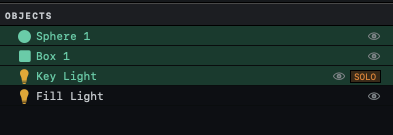
Shift behaves differently in the viewport, where it adds or removes one object at a time. The members of a group are in the list only while the group is expanded with the arrow beside its name, and a Shift-click run skips the members of a collapsed group.
The active item
The item you selected last is the active one. The move gizmo appears on it, and the triangle count at the top right of the viewport names it. ⌘L, O and Tab act on it alone, and SUBTRACT in the BOOLEAN menu keeps it and cuts the other objects out of it.
Other commands act on every selected item. A material card gives its material to all the selected objects, and the Delete key and H remove or hide them all.
To make a different selected object the active item, Shift-click it twice in the viewport. The first click takes it out of the selection. The second puts it back, now as the last item. Two Command-clicks on its row in OBJECTS do the same.
Clear the selection
Press Space, or click an empty part of the viewport. Nothing is selected, and the INSPECTOR reads Select an object.
A click on empty space with Shift held leaves the selection as it was. In poly edit, Space clears only the selected points, edges or faces, and the object stays selected. Choosing a preset from LIGHTING in the toolbar also clears the selection.
Select a group or one of its members
Click the row of the group in OBJECTS.
The group is selected, and the INSPECTOR shows its name and the number of members. The gizmo appears at the middle of the members, and moving it moves the whole group.
To select the group from the viewport, double-click one of its members.
The group is selected in the same way.
A single click on a member selects that member alone, and the gizmo then moves only that object. When a member is selected, right-clicking it and choosing SELECT GROUP selects its group. To make or change groups, see Organize a scene.
Modes that end when the selection changes
Sculpt mode, cage edit mode and poly edit each work on one object. Any change to which items are selected ends whichever of these modes is on, including adding an item or clearing the selection. Clicking the same object again leaves the mode running.
To go back to poly edit, select the object and press Tab. Sculpt mode starts again from SCULPT in the MAGNET PULL deformer of the object, and cage edit mode from EDIT CAGE in its CAGE deformer. Both deformers are covered in Push and pull a shape by hand.
The selection clicks and keys are listed together in Keyboard shortcuts and mouse gestures.