Combine and cut objects with booleans
The BOOLEAN menu joins overlapping objects into one, cuts one object out of another or keeps only the part where objects overlap. SPLIT cuts a single object into two halves. Each of these leaves a new mesh in place of the objects you started with.
The objects have to be closed solids, and they have to touch or overlap. Both conditions are explained under What a boolean needs.
Join, cut or intersect objects
Click the first object. Hold Shift and click each of the others, and click the object to keep last.
The INSPECTOR shows the number of objects above OBJECTS SELECTED.
The last click decides which object SUBTRACT keeps, and the result of any of the three operations takes the material of that object. In OBJECTS, holding Command while you click a row adds that object to the selection as the last one.
Click BOOLEAN in the toolbar.
The menu lists UNION, then SUBTRACT · KEEP followed by the name of the object you selected last, then INTERSECT.

Choose an operation.
COMPUTING BOOLEAN… may appear in the viewport while Orbit works. The objects you selected are then replaced by one selected object.
| Menu item | What remains | Name of the result |
|---|---|---|
| UNION | All the objects, joined into one | Sphere 1 + Box 1, or Union of 3 for three objects |
| SUBTRACT · KEEP SPHERE 1 | Sphere 1, with the other objects cut out of it | Sphere 1 − Box 1 |
| INTERSECT | Only the space that the objects share | Sphere 1 ∩ Box 1, or Intersect of 3 for three objects |
If the menu reads SUBTRACT · KEEP with the wrong name, select the objects again in a different order before you choose.
The same operations are on the right-click menu as BOOLEAN UNION, BOOLEAN SUBTRACT and BOOLEAN INTERSECT. Right-click one of the objects that is already selected, because right-clicking any other object selects that object alone. BOOLEAN SUBTRACT does not show which object it keeps, so check the order in the toolbar menu first. The command palette has the same three items; press ⌘K and type boolean. Both menus list the items only when the boolean can run.
Orbit runs one boolean or split at a time. Until the result appears, the BOOLEAN menu stays dimmed.
The result
The result is a baked mesh, which holds the combined shape as plain points and faces. The objects you started with are gone along with their settings, so no setting can resize a hole or move a joined part afterwards. The result starts with SMOOTH ANGLE at 30°, which shades its flat faces with crisp edges, and it is already an editable mesh, so Tab takes it straight into poly edit mode, where the tools of Edit a mesh point by point apply.
The whole boolean is one undo step. ⌘Z right after it brings back the original objects, still selected. RESET TO PARAMETRIC in the INSPECTOR does not; on a boolean result it leaves a plain box.
Orbit may report that the result has open edges along a seam. The result renders normally, but it cannot take part in another boolean while those edges are open.
Cut an object in half with SPLIT
SPLIT cuts one object with a flat plane through its middle and keeps both pieces. SPLIT Y cuts level with the ground, so the pieces are a top and a bottom; SPLIT X and SPLIT Z cut upright, across the other two directions.
Right-click the object and choose SPLIT Y.
The object is replaced by two meshes that sit flush together. The bottom piece is named after the object with A added, as in Sphere 1 A, and the top piece with B. The B piece is selected.
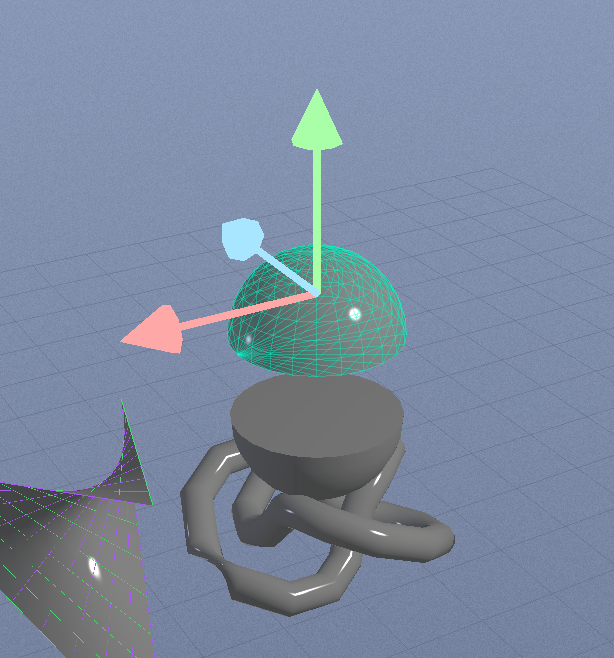
In the INSPECTOR, under TRANSFORM, set POSITION Y to
1and press Return.The top piece rises 1 meter, and the flat faces of the cut show between the two pieces.
For SPLIT X and SPLIT Z, A is the piece where the coordinates along that axis are lower and B the piece where they are higher. The command palette also lists SPLIT X, SPLIT Y and SPLIT Z. The split items appear only when exactly one object is selected and it passes the same checks as a boolean. One ⌘Z undoes the split, and both pieces are baked meshes like a boolean result.
What a boolean needs
A boolean needs at least two selected objects. Lights and groups do not count. Beyond that, the operations differ in how the objects have to meet.
UNION needs the objects to form one connected group. Each object has to touch at least one of the others, so a row of objects that touch end to end qualifies. SUBTRACT and INTERSECT need each of the other objects to overlap the one you selected last. When one of them misses it, the BOOLEAN menu offers only UNION.
Orbit checks the contact with a box drawn around each object, so two objects can pass while their shapes do not meet. An intersection then stops with the message "No overlap. Nothing to intersect." SUBTRACT is missing from the BOOLEAN menu describes what happens with a subtraction.
Each object has to be a closed solid, a surface that encloses a volume with no gaps. WATER, TERRAIN, pen lofts, HELIX, MÖBIUS, SADDLE, HYPERBOLOID and PARABOLOID are open surfaces. A GROWTH is many overlapping branches rather than one solid, and an EMITTER has no surface at all. None of these can take part.
A LATHE, an EXTRUDE or a SPLINE TUBE can take part once its cap or thickness settings close it. The settings for each are in Close the shape for booleans. A SHATTER or BURST deformer breaks an object into loose pieces, so switch it off first. An object with its array turned on is refused because the result would keep only the original; click ARRAY ENABLED to turn the array off.
Size limits
The objects in one boolean can total at most 25,000 triangles, because heavier objects make the calculation slow. On curved objects, lower SEGMENTS or PROFILE RES. On a baked or imported object, use OPTIMIZE in poly edit mode.
The calculation also works within a fixed space around the center of the scene. An object more than 1,000 meters from the center is refused, and so is one thinner than 0.02 m in any direction. To bring a distant object to the center, right-click it and choose CENTER TO ORIGIN, run the boolean, then move the result back. Scale a very thin object up, run the boolean, then scale the result down. SPLIT has the same limits, and it also refuses an object that is too thin to cut along the chosen axis.
Read why BOOLEAN is dimmed
When the selection cannot run a boolean, BOOLEAN is dimmed. Hold the pointer over it to read the reason. When one object is the problem, the tooltip starts with its name.
| The tooltip says | What to do |
|---|---|
| "Select 2 or more closed-solid objects." | Hold Shift and click another object. |
| The name of an object, then why it is not a solid | Close that object with its caps or thickness setting, or leave it out. |
| The name of an object, then "open surface" | Switch off its deformers, or look for a hole left by poly edit mode. |
| The objects total a number of triangles | Lower SEGMENTS or PROFILE RES, or use OPTIMIZE. |
| An object sits too far from the origin, or is too thin | Follow the steps in the message. |
| The objects do not all connect | Move the objects until they touch. |
The right-click menu leaves the boolean items out rather than dimming them, so the toolbar tooltip is the place to read the reason. The BOOLEAN menu is grayed out goes through each case in order.
Related: Drill a hole through a block and Select objects.