Start from an example or the Scene Wizard
Open one of the six finished scenes that come with Orbit, or have the Scene Wizard build a landscape or a 3D logo from a few choices. Either way the result is a complete scene with objects, sky and camera, which you can render, change or save.
Open an example
Choose File ▸ Open Example…, or click OPEN EXAMPLE on the WELCOME sheet.
The EXAMPLES list opens. Each row shows a small picture of the scene, a line about it and the render look it was built for.
Click an example.
If the scene in the window has unsaved changes, Orbit first asks whether to save them. The example then opens, and a message names its look, for example Chrome Abstract was built for RAY '95.
Click APPLY LOOK to render in that look, or KEEP CURRENT to leave the look you had.
With APPLY LOOK, the RENDER card at the bottom right of the window shows the name of the example's look.
| Example | What it holds | Look |
|---|---|---|
| CHROME ABSTRACT | Seven chrome rings inside a mirror sphere, with three lights | RAY '95 |
| NIGHT CANYON | A canyon of layered rock under the stars and a moon | CHROME 2000 |
| LOGO STAGE | The word ORBIT in 3D on a stage floor, with three lights under a night sky | CHROME 2000 |
| GLIDE CANYON | A canyon in the style of a late 1990s console game | GLIDE '99 |
| CHROME BLOBS | Reflective blobs over a bright studio floor | RADIOSITY '96 |
| SUNSET WATER | Land and a calm sea under a low sun, with haze | TERRA '96 |
An example opens as an untitled copy, a scene with no file behind it. Nothing you change reaches the example that comes with Orbit, and the first ⌘S asks for a name and a folder. The copy does not appear in Open Recent, and undo starts empty. Because it counts as unsaved from the start, Orbit asks about saving it before you open another scene or quit.
The example asks because the look is a setting of Orbit and is not stored in the scene. Your choice stays in effect for every scene until you choose another look. The era looks describes the five looks.
The camera of CHROME ABSTRACT sits inside the mirror sphere. Zooming far out, or pressing F with nothing selected, takes the camera outside the sphere, where only its mirrored outside shows. Open the example again to get the original view back.
Roll a landscape
The Scene Wizard is a panel that builds a whole scene from a few choices and a number called the seed. Each roll replaces the scene in the viewport behind the panel, and ACCEPT keeps the one you want.
Opening the wizard clears the objects, lights, groups and sky of the scene in the window, and leaves the camera where it is. Orbit does not ask about unsaved changes, because a single undo brings the old scene back, and so does CANCEL. Neither moves the camera, which stays where the last roll put it.
Choose File ▸ New from Scene Wizard… or press
⇧⌘N.The SCENE WIZARD panel opens with LANDSCAPE selected under MODE, and the viewport clears.
The NEW menu in the toolbar has the same command as SCENE WIZARD…. On the WELCOME sheet, the SCENE WIZARD card opens the panel on LANDSCAPE, and TYPE YOUR NAME opens it on LOGO.
- Set any of the pickers described below, and leave the rest on SURPRISE.
Click ROLL or press Return.
A landscape appears in the viewport, and SEED shows the number of this roll.
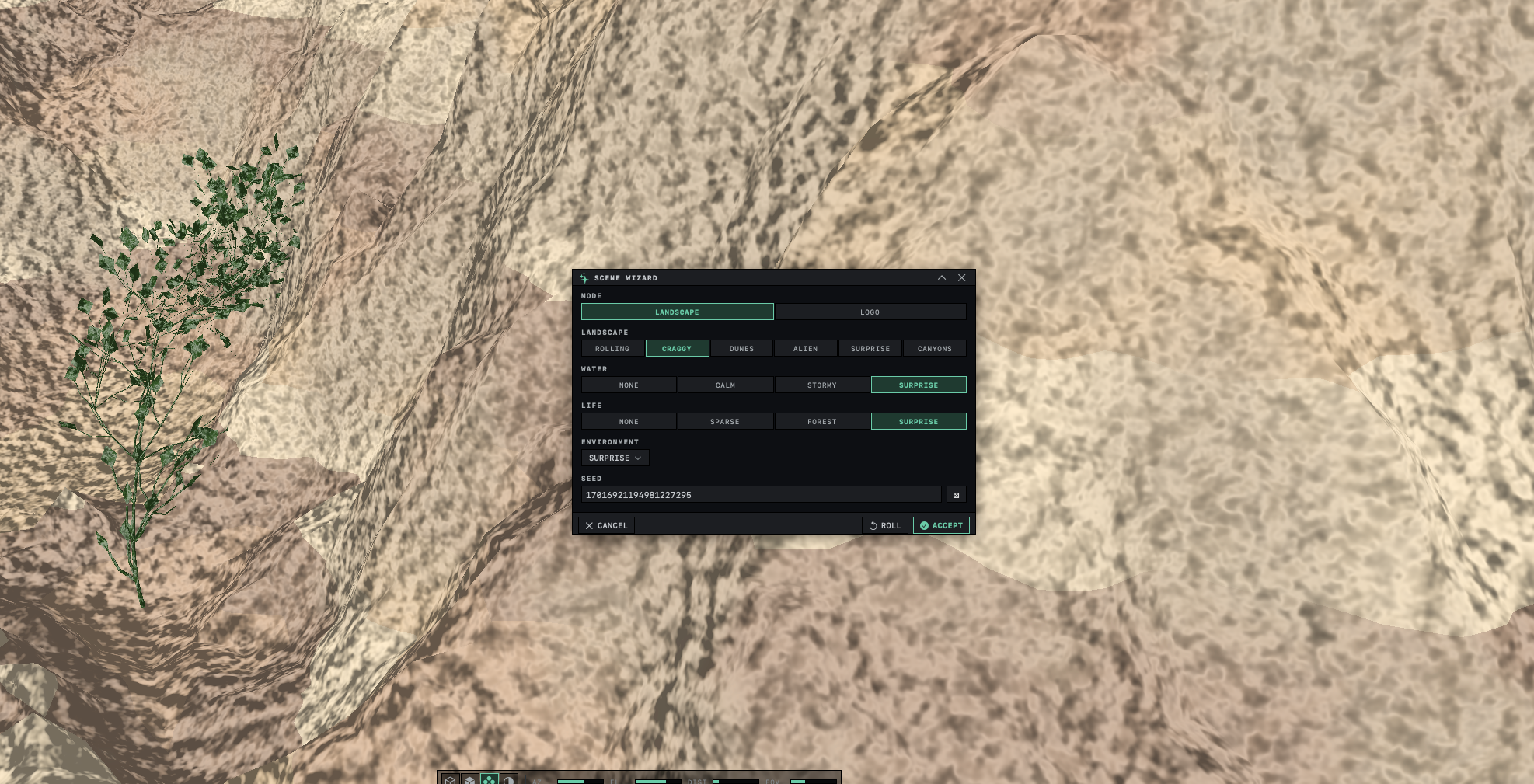
- Roll again until one looks right. Between rolls, hold Option and drag in the viewport to see the landscape from other sides.
Click ACCEPT.
The panel closes, and Orbit builds the ground again with more detail. Orbit may pause briefly while it does.
Press
F.The camera moves back until the whole landscape is in view.
| Picker | Choices | What it sets |
|---|---|---|
| LANDSCAPE | ROLLING, CRAGGY, DUNES, ALIEN, CANYONS | The shape of the ground |
| WATER | NONE, CALM, STORMY | Whether there is a sea, and how rough its waves are |
| LIFE | NONE, SPARSE, FOREST | Plants spread over the ground above the water, about 6 to 10 with SPARSE and 16 to 26 with FOREST |
| ENVIRONMENT | DAY, DUSK, NIGHT, ALIEN DAY, ALIEN NIGHT, STORMY, VOID | The sky, including the sun or moon |
A picker left on SURPRISE lets each roll choose, within rules that keep the parts consistent with one another. A STORMY sky brings stormy water, alien skies lean toward alien ground and always grow alien plants, and a night sky adds glowing fireflies.
A wizard landscape has no lights of its own. The sky lights it, so the sun and its direction come from the roll. Set the sky, sun, fog and clouds shows how to change them, and Make a landscape at dusk takes one roll through to a finished render.
For an alien planet postcard, set ENVIRONMENT to ALIEN DAY, LANDSCAPE to ALIEN and LIFE to FOREST. The plants take coral, fungus, thorn, curl or crystal shapes, and on some rolls a large planet hangs in the sky. Roll until one shows the planet.
Roll a 3D logo
In the SCENE WIZARD panel, click LOGO under MODE.
The pickers change to WORD, MOOD and MATERIAL.
Type a word in the WORD field and press Return.
The word stands as 3D text on a reflective floor, lit by three lights. A blank field gives the word ORBIT.
Roll until you like the result, then click ACCEPT.
The panel closes and the scene stays as rolled.
MOOD chooses the backdrop: STUDIO for a dark studio, NIGHT for a starry sky or SUNSET for a golden evening sky. MATERIAL chooses CHROME, GOLD or NEON finishes, and each roll picks one finish from the chosen family along with one of four fonts. To render a logo and save it step by step, follow Put your name in chrome.
Build a roll again from its seed
The same seed with the same picker choices, and in LOGO the same word, builds the same scene again, even after Orbit restarts.
- After a roll you like, note the number in SEED and the choice in each picker.
- When you want the scene again, open the wizard and set the same choices.
Click in SEED, type the number and press Return.
The wizard builds that scene again.
ROLL uses the number in SEED only when it differs from the seed of the last roll. While the field still shows the last roll's number, ROLL picks a new random seed, so clicking ROLL again and again gives new scenes. The die button beside SEED puts a random number in the field without rolling.
Keep or cancel
ACCEPT is dimmed until the first roll. On LANDSCAPE, it builds the scene again from the seed with the pickers as they stand when you click it, so a picker changed after the last roll changes the result; click ROLL first. Rolls add no undo steps, so after ACCEPT a single ⌘Z brings back the scene you had before opening the wizard.
CANCEL, the close button of the panel and Esc all close the wizard and put back the scene from before it. Opening the MATERIAL BROWSER or the ENVIRONMENT BROWSER while the panel is open, for example with M or ⌘E, cancels the wizard in the same way. Click ACCEPT before you open either browser.
Related: Save, open and recover scenes and Build a terrain.