File and purchase problems
- A recent file does not open
- Pressing ⌘S asks where to save
- Orbit offers to recover unsaved work
- A scene does not open or opens with warnings
- The EXPORT menu is grayed out
- Renders still carry the watermark after buying
- The status reads FREE VERSION (REFUNDED) or FREE VERSION (UNVERIFIED)
- An imported OBJ model looks wrong
- You cannot find Orbit's log files
The problems on this page include scene files that will not open, the offer to recover unsaved work, a grayed EXPORT menu, a watermark that stays after you buy the full version, imported OBJ models that look wrong and log files you cannot find.
A recent file does not open
When you choose a scene from Open Recent in the File menu, from RECENT on the WELCOME sheet or from the command palette, Orbit may say that it no longer has access to the file. The entry then disappears from the list.
Orbit runs in the App Sandbox, a macOS protection that lets an app open a file outside its own folders only after you have chosen that file, in an Open panel or in Finder. For each recent file, Orbit stores the permission macOS gave it at that moment. When that stored permission cannot reach the file, the entry cannot open, and choosing the file again gives Orbit a new one.
Choose File ▸ Open Scene… or press
⌘O.If the current scene has unsaved changes, Orbit asks whether to save them first. Then the Open panel appears.
Select the scene file and click Open.
The scene opens and is back at the top of Open Recent.
Double-clicking the file in Finder works the same way.
A file can also drop off the list without a message. Open Recent holds the five scenes you opened or saved most recently, and RECENT on the WELCOME sheet shows the first four of them. Orbit also removes a file from both lists once it cannot reach it, as when the file has been deleted.
Pressing ⌘S asks where to save
Save Scene (⌘S) saves over the scene's file when it has one. A new scene has no file yet, and neither do examples and recovered work, which open as untitled copies, so for these ⌘S shows the Save panel. Choose a folder and a name, and later saves go to that file.
The panel also appears when Orbit cannot write to the file where it is, for example because its folder was moved or no longer accepts changes. Save it to a location you choose in the panel.
Orbit offers to recover unsaved work
When Orbit starts with the message Recover unsaved work?, the last session ended without a normal quit while the scene had unsaved changes, as in a crash or a force quit. While a scene has unsaved changes, Orbit saves a copy of it every 30 seconds, and the message offers the latest copy. It names the scene's file, if the scene had one, and says how long ago the copy was made.
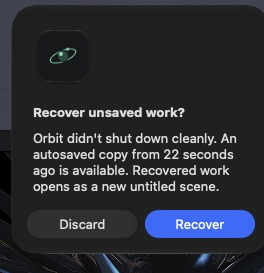
Click Recover.
The work opens as a new untitled scene, and the scene file you last saved is left unchanged.
Press
⌘S, choose a folder and a name, and click Save.The recovered work is saved under the name you chose.
The copy can be missing up to the last 30 seconds of work before Orbit stopped, and undo does not reach back past the recovery. Discard deletes the copy, and Orbit does not offer it again.
If Orbit then says it could not read the autosaved scene, the copy is unusable. When it can, Orbit moves the file aside as autosave-unreadable.orbit and the message shows where it is. Keep that file, the only copy of the work, and report the problem.
Orbit offers nothing when the scene had no unsaved changes at the moment it stopped, or when it stopped before the first copy of its unsaved changes was made, for example within about 10 seconds of starting.
A scene does not open or opens with warnings
A message saying the scene was saved by a newer version of Orbit means the file uses a format this version cannot read. Update Orbit 3D through the App Store, then open the file again.
When Orbit cannot read the file at all, the message says it could not open the file and gives the reason macOS reported. Orbit could not make sense of the file's contents, so open an earlier copy of the scene if you have one.
A message beginning "Scene opened with warnings" means the scene opened with some parts skipped. Each line of the message says what was skipped, whether objects, deformers or animation lanes that this version of Orbit does not recognize, or damaged faces removed from an edited mesh. A line saying the scene was saved by a newer Orbit means settings from that version will be dropped when you save.
The skipped parts are missing only from the open scene. The file on disk keeps them until you save over it with ⌘S. If an update to Orbit 3D is available, install it before you edit the scene. To keep working in this version without losing them, save under a new name with File ▸ Save Scene As… (⌥⇧⌘S).
A scene that opens in a different render look from the one it was made with is covered under A scene opens with a different look.
The EXPORT menu is grayed out
The EXPORT menu near the left end of the toolbar saves the selected objects as geometry, either as an .orbitobj file for another Orbit scene or as an .obj file for other 3D programs. Pictures come from EXPORT RENDER, a separate button. Hold the pointer over EXPORT to see why it is gray.
If the tooltip says that geometry export needs the full version, Orbit is running as the free version, which does not export geometry. Renders, turntables and loops save as usual, with the watermark. Buy the full version to turn geometry export on. The tooltip says the same while the status chip in the toolbar reads CHECKING, because Orbit treats itself as the free version until the App Store answers.
The tooltip "Select an object to export" means nothing exportable is selected; select an object or a group in the viewport or in the OBJECTS list. Lights cannot be exported, so a selection of lights alone keeps the menu gray.
In the File menu, Export Selected as Object… and Export Selected as OBJ… are grayed out only in the free version. With nothing exportable selected, choosing them makes the Mac beep.
When EXPORT opens but SELECTED AS OBJ (.OBJ)… is dimmed, the selection holds only water and emitters. Neither has a mesh to write into an OBJ file. SELECTED AS OBJECT… saves them as an .orbitobj file.
Renders still carry the watermark after buying
Orbit adds the two marks at the moment a render starts, so a picture rendered before the purchase went through keeps them, and so does any file saved from it. Render the picture again. If the new render still has the marks, check the purchase status.
In the toolbar, click the status chip to the left of EXPORT RENDER. It reads FREE VERSION, CHECKING or FULL VERSION; in a narrow window it shrinks to a small colored square.
The WELCOME sheet opens with the purchase status at its bottom left. FULL VERSION means the purchase is active, and new renders have no marks.
If the status reads FREE VERSION, click RESTORE PURCHASE. If macOS asks you to sign in, use the Apple Account that bought the full version.
The button reads RESTORING… while Orbit asks the App Store. When the purchase is found, the status and the chip change to FULL VERSION without a restart.
Render the picture again.
The new render has no marks.
The same status and buttons are under PURCHASE in SETTINGS.
CHECKING PURCHASE… means the App Store has not answered yet. Until it does, Orbit works as the free version and shows no RESTORE PURCHASE button. On a Mac where Orbit has never reached the App Store, the status reads FREE VERSION until it can, so restore while the Mac is online.
If Orbit reports that no purchase of the full version was found for this Apple Account, the account you signed in with is not the one that bought it. When the restore fails for another reason, the App Store's reason appears on the WELCOME sheet above the status.
A message after buying that begins "Purchase pending approval" means the purchase is waiting for someone to approve it, as with Ask to Buy. Orbit changes to the full version by itself once the purchase is approved.
The status reads FREE VERSION (REFUNDED) or FREE VERSION (UNVERIFIED)
The status chip in the toolbar reads FREE VERSION in both cases. The longer status appears at the bottom of the WELCOME sheet and under PURCHASE in SETTINGS.
FREE VERSION (REFUNDED) means the App Store reports that the purchase was refunded. Apple handles refunds, and a refunded purchase does not count, so Orbit works as the free version again, with the marks on renders and geometry export turned off. The rest of the app keeps working. Buying again with BUY FULL VERSION turns the full version back on.
FREE VERSION (UNVERIFIED) means the App Store returned a purchase record that could not be verified, so Orbit does not count it. Click RESTORE PURCHASE after a short wait. If the status stays the same, report the problem.
For everything the purchase changes, see The free and full versions.
An imported OBJ model looks wrong
Orbit reads the points and faces of an OBJ file and ignores the rest. Everything in the file becomes a single object. Groups in the file are merged, and texture coordinates and materials are not imported. Orbit objects have no texture coordinates, because Orbit projects images onto an object from its position, as Put an image on an object describes. A texture mapped in another program could not line up, so the .mtl material file is skipped along with it. Give the model an Orbit material, as in Apply and edit materials.
Orbit also works out the shading of the surface for itself. At the default SMOOTH ANGLE of 180°, it shades smoothly across every edge, so a model with sharp corners can look soft or smudged. Select the model and lower SMOOTH ANGLE in the SHADING section of the INSPECTOR. Where two faces bend away from each other by more than the angle you set, the edge between them is drawn hard.
Orbit uses the coordinates in the file as they are, so a model built very large or very small arrives at that size. After import, the model is selected and rests on the ground. Press F to frame it, then scale it as described in Move, rotate and scale objects.
Before it imports a model of 100,000 triangles or more, Orbit asks for confirmation in a message titled Large Model, and from 500,000 triangles the wording is stronger. Click Import to continue or Cancel to stop. Orbit counts triangles after splitting each face, so 60,000 faces with four corners each count as 120,000 triangles. A model of any size imports, but editing, undo and saving slow down as it grows, because each undo step holds a full copy of the mesh and saved files grow with it.
When some lines of the file cannot be read, Orbit imports the rest and says how many lines it skipped. A file with no readable faces imports nothing.
Double-clicking an .obj file in Finder does not open it in Orbit. Import it with IMPORT ▸ WAVEFRONT OBJ (.OBJ)… in the toolbar or with File ▸ Import Wavefront OBJ….
You cannot find Orbit's log files
Orbit keeps a small activity log for diagnosing problems. The log stays on the Mac and takes up about 10 MB at most, and Orbit uploads none of it. Open its folder from Orbit rather than by its path. Because Orbit runs in the App Sandbox, macOS keeps its files in a folder of their own, so the path printed under DIAGNOSTICS may not lead to the logs.
Click SETTINGS at the right end of the toolbar.
The SETTINGS sheet opens.
Scroll down to DIAGNOSTICS and click OPEN FOLDER.
A Finder window opens on the log folder. The current log is
orbit.log, and older logs are numbered fromorbit.1.logtoorbit.4.log.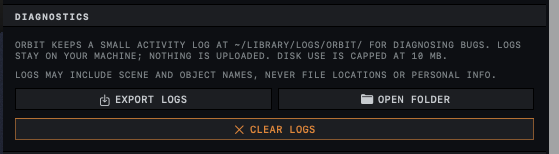
To send the logs with a problem report, use EXPORT LOGS in the same section. It saves the logs, the version of Orbit and a description of the Mac in one text file. Report a problem explains what to send with it.